 COME
COMERecord the result of COME Check Update
When using COME Check Update, record the message that actually appears and the installed release separately. A status label and a version identifier serve different purposes.
Start from the visible setting
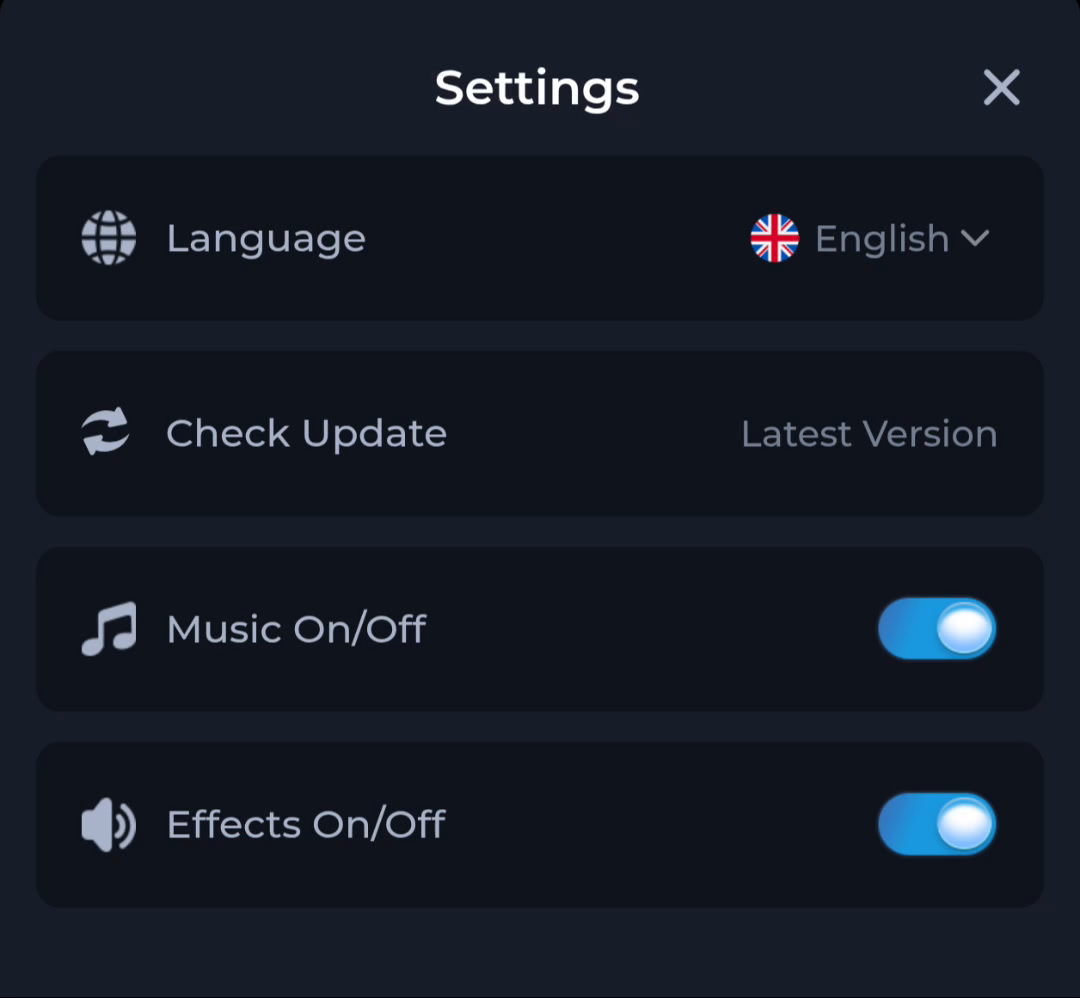
The Settings panel places Check Update between Language and the audio controls. Select the named update control when an update is your task. Changing language or turning effects off is not part of a release check.
Keep the observation precise
Record the displayed status and any actual release identifier or next action. If the panel says Latest Version without a number, do not turn that phrase into a specific new release. Compare Android App info or recognised release details when available.
Before moving to another task
Keep the current screen and the action you just took in mind. A menu label helps you locate information, but account changes, download completion and support decisions each need their own result. If the interface differs, match the actual label and context rather than following a memorised screen position. For a personal service question, stay with the recognised in-app help route and keep private access details out of public posts.
A practical example
After an update check, the screen says Latest Version while App info records the installed number. Keep both observations with their labels; they do not mean a new APK was necessarily downloaded.
What a completed answer looks like
Your update note contains the actual setting response and the known installed release without inventing a download or version change.
Choose another specific COME guide